

How to Combine Application Images into One PDF Under a File-Size Limit
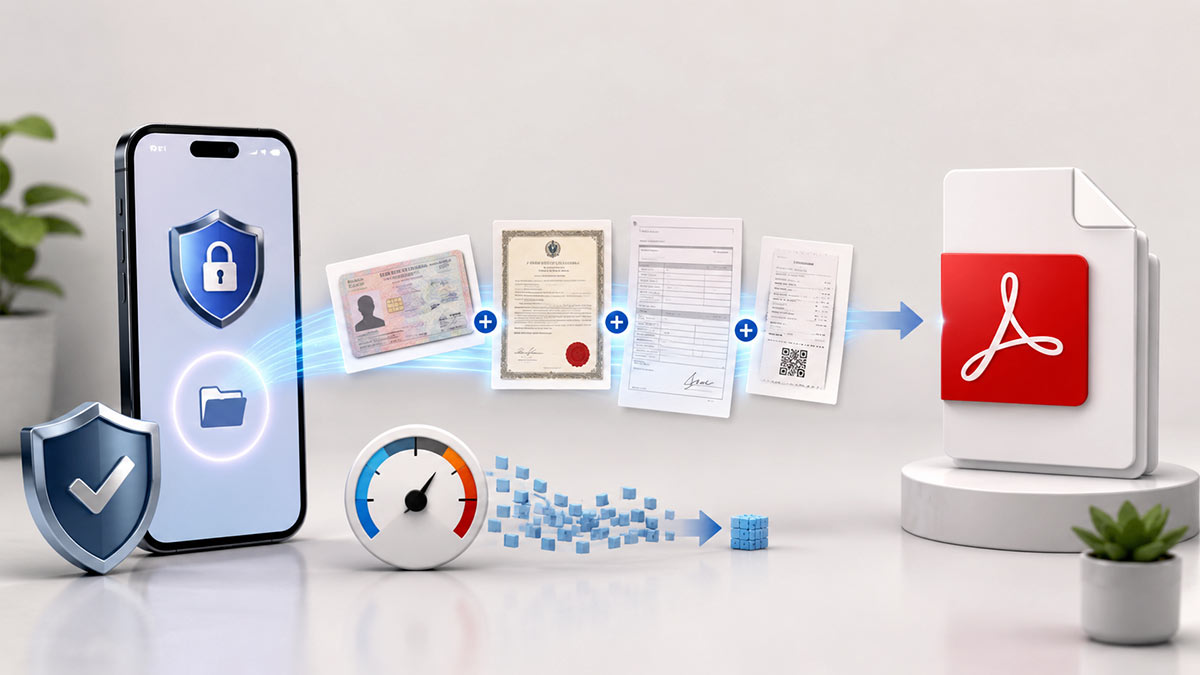
Application documents saved as JPG or other image files can be combined into one PDF and kept under the maximum KB or MB upload limit required by an online application portal.
Online applications for employment, education, examinations and other services may require several supporting documents. These can include photographs of an identity document, certificates, signed forms, receipts or other records.
A phone or scanner normally saves each page as a separate image. However, an application portal may ask for all the pages in one PDF. It may also reject a PDF that exceeds its maximum file-size limit.
Why combine multiple images into one PDF?
Submitting several separate images can be inconvenient, and some online systems do not allow it. Combining the images into one PDF keeps all the pages together and makes it easier for the recipient to review the documents in the correct order.
For example, the first image can be the front of an identity document, followed by the back, a certificate and a signed form. Once combined, these images become consecutive pages in one PDF document.
A single PDF is also easier to name, save, email and upload than several separate JPG, PNG or HEIC files.
Check the application requirements first
Before creating the PDF, read the upload instructions provided by the application portal. Check:
- Whether the portal accepts PDF files.
- The maximum permitted file size, such as 200 KB, 500 KB, 1 MB or 2 MB.
- Whether all documents should be submitted in one PDF.
- The required order of the pages.
- Whether the pages must be clear, complete and upright.
- Whether a particular filename is required.
Knowing these requirements before beginning can prevent the application from being rejected or delayed.
Prepare clear images of every document
Use a scanner or phone camera to create a clear image of each page. Place paper documents on a flat surface and use sufficient light. Avoid shadows, glare, blurred text and fingers covering part of the document.
Crop unnecessary background areas where possible. A photograph containing a large table, floor or wall around the document can increase the file size without improving readability.
Check that names, numbers, dates, signatures and official stamps remain clear. A smaller PDF is useful only if the important information can still be read.
How to convert multiple images into one PDF
The free JPGPDF.cc image-to-PDF converter can combine JPG, JPEG, PNG, WebP and HEIC images into one PDF. It also allows users to enter a maximum PDF size in KB or MB.
Follow these steps:
- Add the application images. Select the document images from your computer, phone or tablet. Several images can be added together.
- Arrange the pages. Move the images into the order in which they should appear in the PDF. The first image will become the first page. Rotate any image that is facing the wrong direction and remove files that are not required.
- Choose the page settings. Select A4, US Letter or a page fitted to each image. You can also choose portrait or landscape orientation and set the page margins.
- Enter an output filename. Use a clear filename that helps identify the document. Follow any naming instructions given by the application portal.
- Set the maximum PDF size. Enter the permitted limit and select either KB or MB. For example, enter 500 and select KB if the portal accepts files up to 500 KB.
- Create the PDF. The converter will prepare one PDF containing the selected images. It may reduce image quality or dimensions when necessary to remain under the selected limit.
- Download and check the document. Open the downloaded PDF and review every page before submitting it.
What does a maximum PDF size mean?
The selected size is a maximum limit, not a request for an exact file size.
For example, when a 1 MB limit is selected, the finished document might be 950 KB, 820 KB or another size below 1 MB. It does not need to be exactly 1 MB to meet the requirement.
A very small limit may not be technically possible when the PDF contains many detailed pages. Every PDF requires some document data, and the images need enough information to remain visible.
If the requested limit cannot be reached, try:
- Removing pages that are not required.
- Cropping unnecessary areas from the original images.
- Using clearer source images with simple backgrounds.
- Dividing the documents into separate PDFs if the portal permits it.
- Selecting a larger limit when the application rules allow it.
Avoid reducing the quality so much that names, numbers or other important details become unreadable.
Are the application images uploaded?
JPGPDF.cc processes the selected images inside the user’s web browser. The images are not uploaded to the JPGPDF.cc server, and the PDF is created locally on the device.
This local processing can be useful for identity documents, certificates and other private application records. However, the downloaded PDF will remain on the device until the user moves or deletes it.
The browser must also have enough memory to process the files. Many high-resolution photographs or large HEIC images may take longer on an older phone or computer.
Check the PDF before submitting it
Never submit an important PDF without opening it first. Confirm that:
- Every required page is included.
- The pages appear in the correct order.
- No page is sideways or upside down.
- All important text and numbers are readable.
- The file size is within the permitted limit.
- The filename follows the application instructions.
- The PDF opens correctly on the device.
Keep the original images and a copy of the finished PDF until the application process has been completed.
Disclosure: JPGPDF.cc is a separate free website managed by the webmaster of Onlanka.com.